Free Image to Text

Add your image

Copy words from a photo or screenshot in your browser. Check each line against the picture and save the text as TXT, Markdown or JSON.

Free · No sign-in · JPG, PNG, WebP up to 10 MB

Turn images into text for free.

Use the free image to text converter to copy a receipt total, a recipe ingredient or a line from a screenshot. Select a text block to find the same words in your photo.
  • Free OCR and exports
  • Runs in your browser
  • No sign-in required
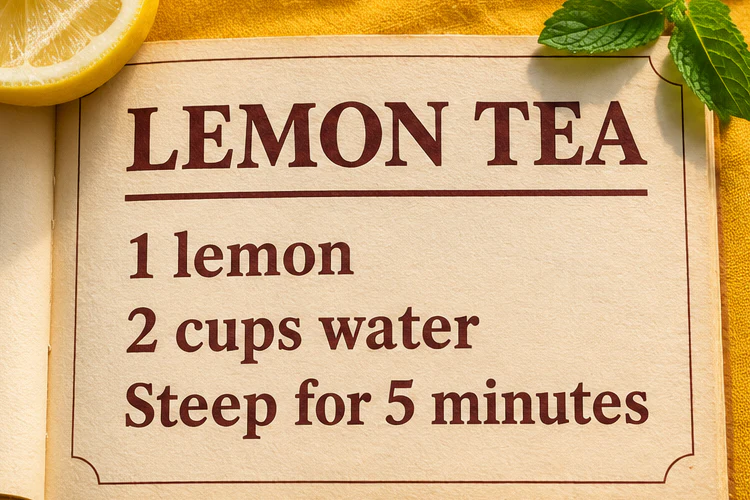
A printed lemon tea recipe card alongside fresh lemons
Extracted text
LEMON TEA
1 lemon
2 cups water
Steep for 5 minutes

How to extract text from an image

  1. Add your image

    Drop in a JPG, PNG, or WebP, paste a screenshot, or open a direct image link.

  2. Check a line

    Hover over a line or tap it to see where the words came from in the original image.

  3. Take the text with you

    Copy a single line or save the whole result as plain text, Markdown, or JSON.

Image to Text examples

Explore 9 image types. Open a sample to compare the original with the text your browser reads.

Four ways to add an image

Choose a file

Choose Upload image to open a photo or scan from your computer or phone.

Drag and drop

Drag a saved image onto the canvas. Recognition starts when you drop it.

Paste a screenshot

Copy a screenshot, then paste it onto the page with Ctrl+V or Command+V.

Open an image URL

Paste a direct link to a public image. If its host blocks access, open a saved copy.

What can you open?

The converter reads common photo and screenshot formats. Check these limits before opening a large scan.

File types
JPG, PNG, WebP
File size
Up to 10 MB
Resolution
Up to 24 MP

For a PDF, take a clear screenshot of one page at a time.
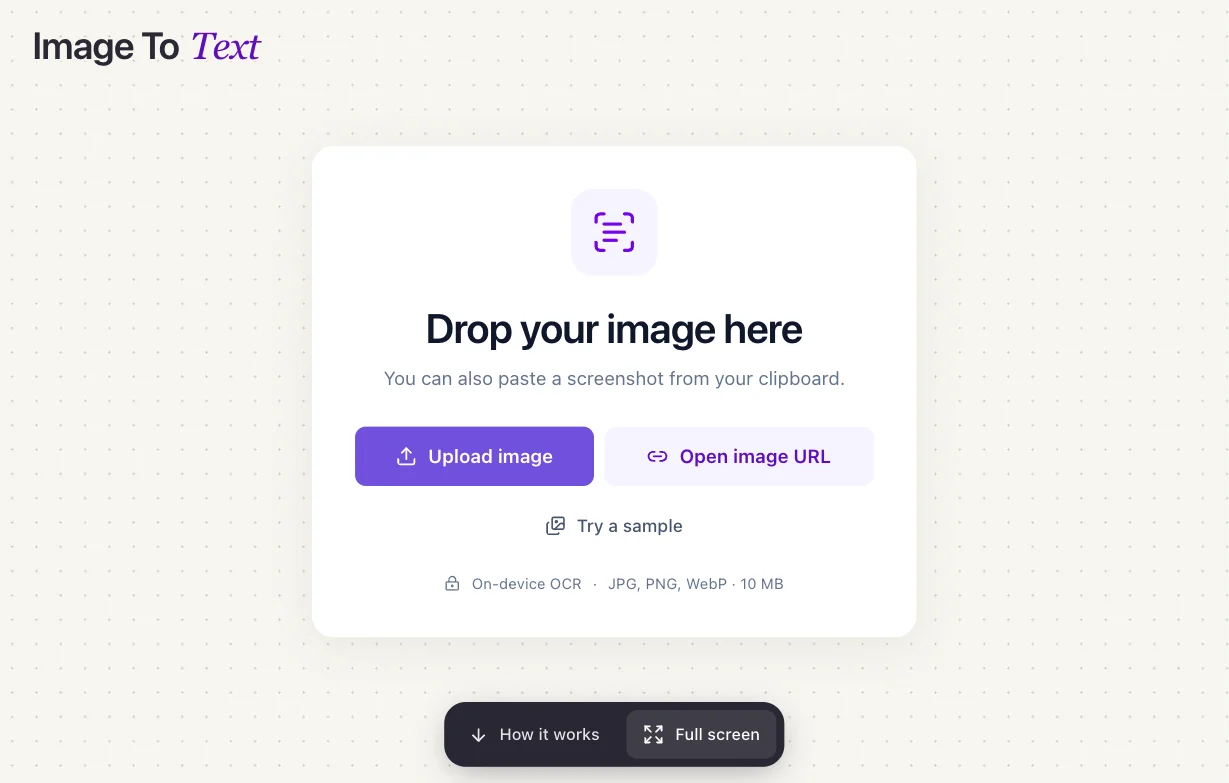
The image picker offers file upload, image URL, and sample options.
Choose a local file, paste a screenshot, or open an image link.

Check a word against the original

A small accent can change a name. Hover over a line in Text Blocks, or tap it on your phone, to highlight the same words in the photo.
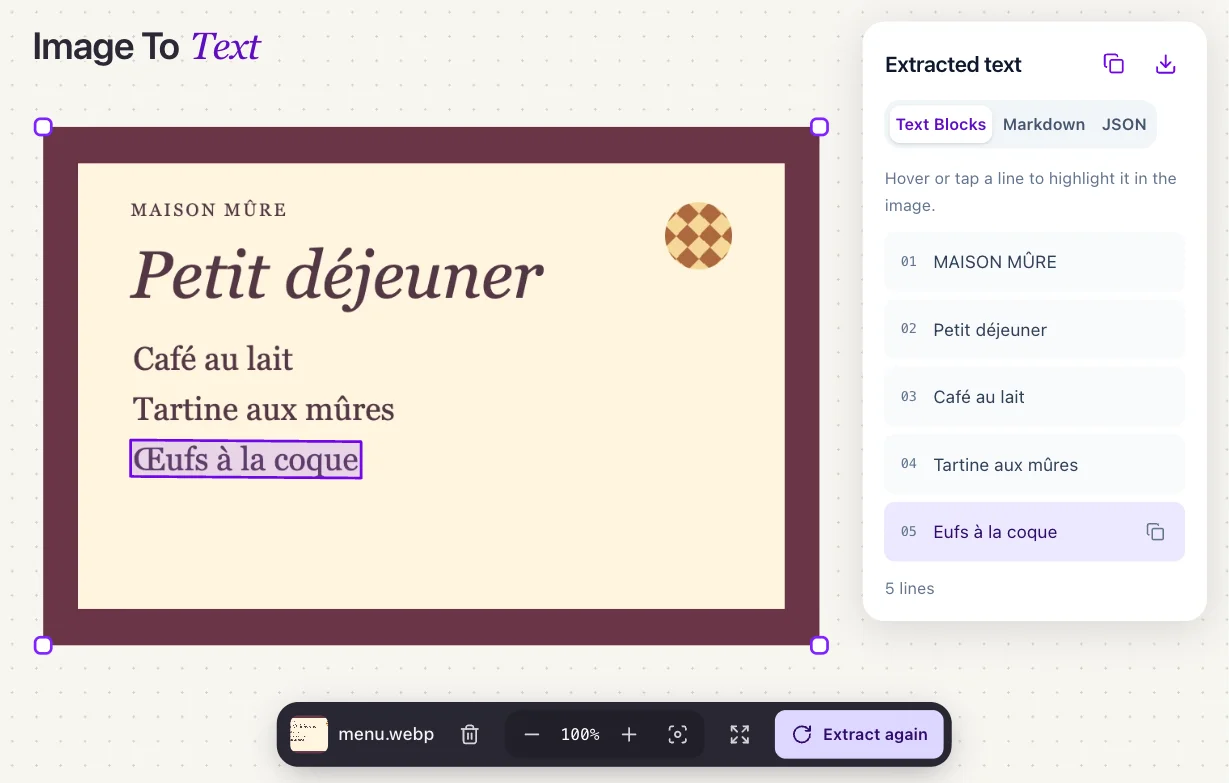
Recognized
Eufs à la coque
Printed on the menu
Œufs à la coque
See the menu example
A French menu with the last dish highlighted and its recognized line selected in Text Blocks.
The highlighted dish begins with Œ. The recognizer read it as E.

Copy just the line you need

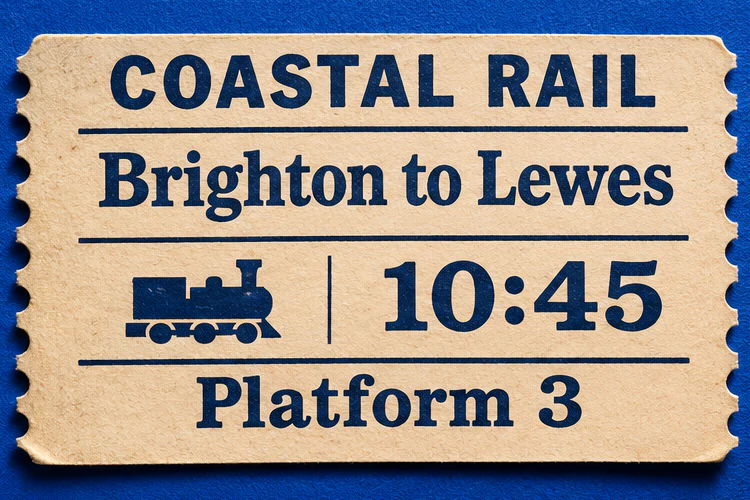
A ticket can hold a route, a time, and a platform number. Each recognized line has its own copy button.
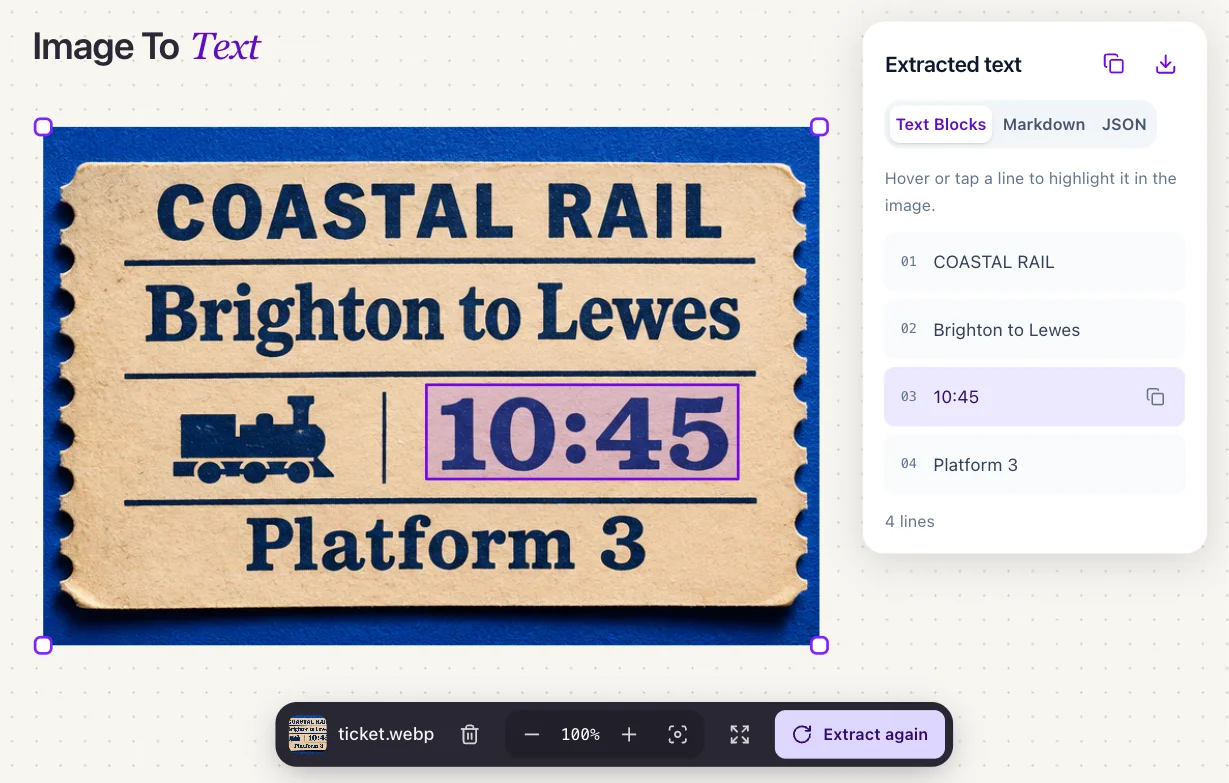
  • Locate it. Hover over a result to see the matching area on the image.
  • Inspect it. Pinch to zoom in on small numbers or punctuation.
  • Copy it. Use the line’s copy icon, then paste the value into your notes.
The time 10:45 is selected on a train ticket and highlighted in the OCR results.
Select 10:45 to check the departure time on the ticket.

Give small print a clearer start

Zoom in on the smallest letters before running OCR. If a decimal point is hard to see in the photo, it can be hard to recognize, too.

  • Blur or glare. Use the original screenshot, or photograph the page straight on in even light.
  • Mixed-up columns. Crop each column separately to keep prices beside the right items.
  • Similar characters. Check O and 0, I and 1, and the decimal point in a total.

Soft focus

Sharp focus

Look for the decimal point in the $8.25 total.

Take the text where you need it

Pick a format in the result panel, then use its copy or download button. All three formats are free.
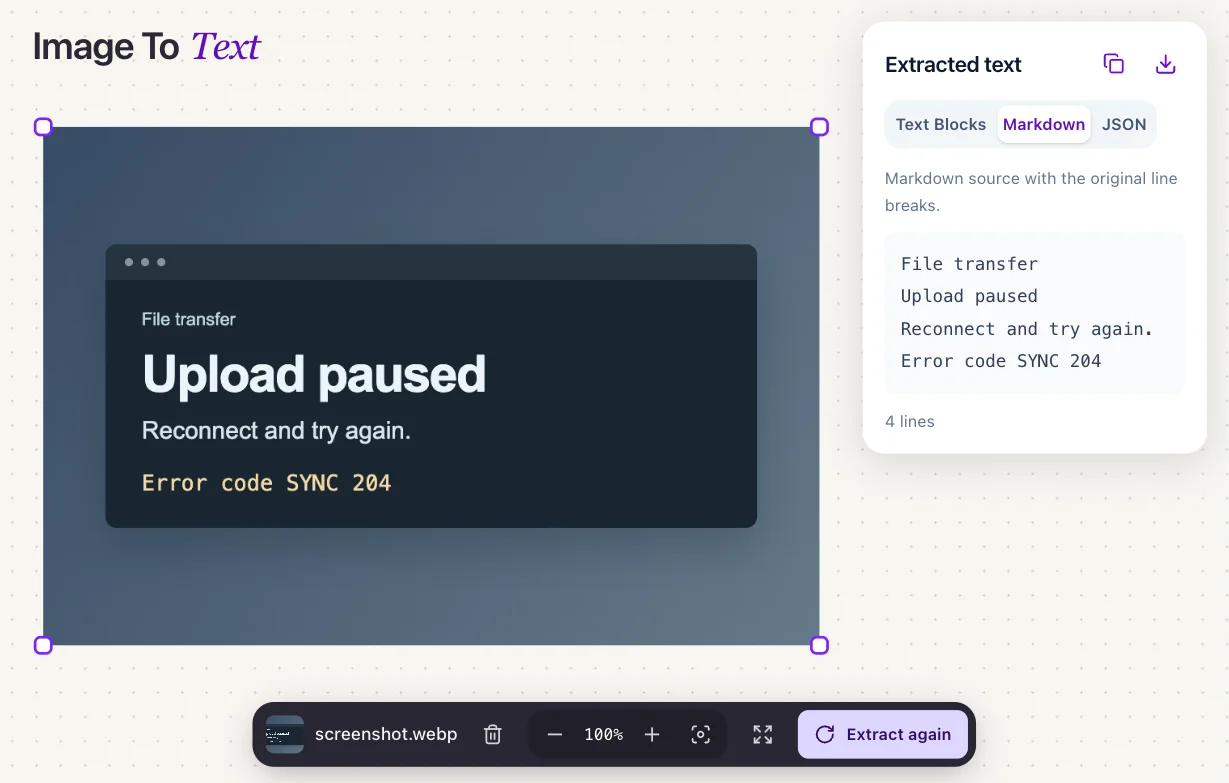
  • Text Blocks for copying a line or downloading plain text.
  • Markdown for preserving line breaks when pasting into a Markdown document.
  • JSON for the OCR image dimensions, line text, and polygon coordinates.
An app screenshot beside the Markdown source of its extracted error message.
The Markdown view keeps the error message on separate lines.

Your image stays in your browser

No account is required. Your browser downloads the recognition models and runs PaddleOCR.js on your device. Your local image and its text stay on that device.

When you open an image URL, your browser requests the file from its original host. Copy or download the result before closing the page.
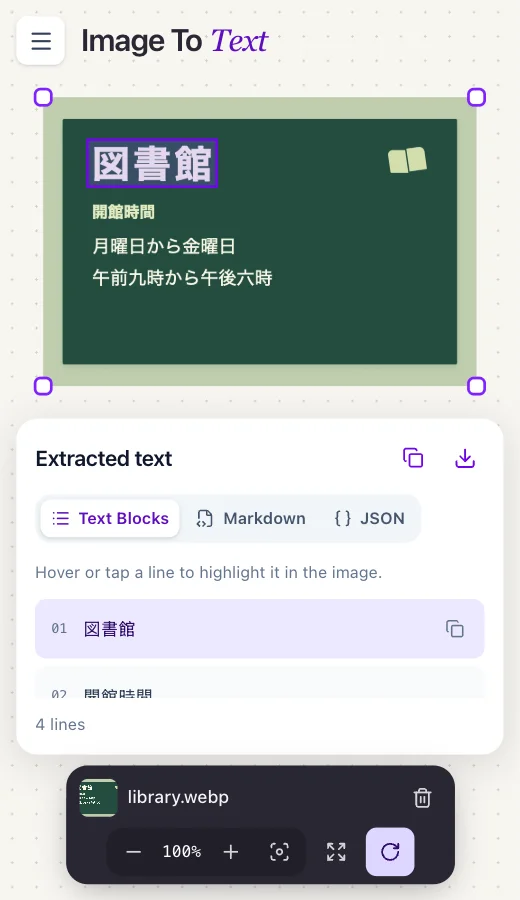
Mobile OCR canvas showing a Japanese library notice and its recognized lines.
Reading a library notice in the mobile browser.

Frequently asked questions

All topics

Getting started

6 questions
What does Image to Text do?

It uses optical character recognition (OCR) to read the letters in a photo, screenshot, or scan. You can select and copy the text in its original language. Try a sample from the library to compare the printed words with the result.

Can I extract text for free?

Yes. Upload an image as a guest, check the recognized words against the original, and copy or download the result.

Can I try OCR before choosing my own image?

Select Try a sample below the upload buttons and choose a picture. Your browser reads it and shows the recognized lines beside the original.

Can I use it on my phone?

Yes. Open this page in your mobile browser, tap Upload image, and choose a photo or screenshot from your device. Your browser needs a connection to load the tool and its models the first time. The image is then read on your device.

How can I find a line in the original image?

In Text Blocks, hover over a row, tap it on a touchscreen, or focus it with Tab. A violet outline marks that line on the original. Click a line to keep its outline visible while you drag the image. To magnify small print, spread two fingers on the canvas or trackpad. You can also drag an image corner or use the zoom buttons in the bottom toolbar.

Can I extract just one line from a picture?

Yes. Hover over the line in Text Blocks, or tap it on a touchscreen, then use its copy button. If the page has a busy background or several columns, crop the image to the line you need before uploading.

Files & uploads

8 questions
Which image formats can I upload?

Choose JPG or JPEG, PNG, or WebP. PNG works well for screenshots with small text. For a camera photo, start with the original JPG so the letters stay sharp.

What are the file size and resolution limits?

Each image can be up to 10 MB and 24 megapixels. Both limits apply. If your photo exceeds either limit, crop it to the passage you need or export a smaller copy.

Can I extract text from a PDF or a scanned document?

For a PDF, open the relevant page, zoom in until the text is clear, and take a screenshot. Upload or paste that screenshot. A scan already saved as JPG, PNG, or WebP can be uploaded directly.

How do I use an iPhone HEIC photo?

Export a copy as JPEG or take a screenshot of the photo and upload it as PNG. Changing only the filename extension leaves the original format intact.

Can I convert several images or pages at once?

The converter reads one image at a time. Copy or download the first result, choose Remove, and upload the next image. To combine pages, paste each result into the same document in reading order.

How do I paste a screenshot from my clipboard?

Copy the screenshot itself, click the converter, and press Ctrl+V on Windows or Command+V on Mac. If your screenshot was saved as a file, choose Upload image or drag the file onto the upload area.

How can I read text from a video frame?

Pause on a frame where the text is sharp and the player controls are out of the way. Take a screenshot of the area you want to read and paste it into the converter.

Why won’t my image URL open?

Use a direct HTTP or HTTPS link that opens the image itself. Links to gallery pages, sign-in pages, or hosts that block access from other sites can fail. Save the image to your device and upload the file.

Recognition & accuracy

8 questions
Which languages can OCR recognize?

OCR reads English, Simplified Chinese, Japanese, Korean, German, French, Spanish, Italian, and Portuguese automatically. The result uses the characters found in the image.

What should I do with a bilingual image?

Upload the image as it is. In Text Blocks, hover over a line, tap it, or focus it with the keyboard to highlight the original passage. If the lines run together, crop one passage at a time on your device and extract the text from each crop.

Can it read handwriting or decorative lettering?

Clear printed text is the most reliable input. You can try handwriting, but joined letters, flourishes, and uneven spacing can produce missing or incorrect words. Compare the transcription with the original before using it.

Why did it miss text or return an empty result?

Zoom in on the smallest letters in the original. Blur, glare, sideways text, and lettering over a busy photo can hide details. Rotate the image so the letters are upright, crop out distracting graphics, and upload the clearer copy.

How accurate are dates, prices, and reference numbers?

Check each digit against the image before using it. A zero can look like the letter O, and a faint decimal point can disappear. For a receipt, verify the currency, amount, and which item the amount belongs to.

Will it preserve a table or a two-column layout?

The result contains words and line breaks. A table’s cells or a page’s columns can appear in a different order. Crop each column or row individually when alignment matters, then place the verified values in your spreadsheet.

Why is one phrase split into several text blocks?

A wide gap between words can make the reader detect them separately. In the street sign sample, “Ferry” and “Pier” appear in separate blocks. Hover over each block to check its position, then join the words when you paste them.

Why do logos or illustrations add random characters?

The recognizer can interpret shapes as letters. If a logo adds a stray character, remove it after pasting the text into your document. For a graphic beside a short code or price, crop to just the printed line and try again.

Copy & export

6 questions
How can I correct a recognition mistake?

Check the word against the highlighted line in the image. Copy the line into your document and edit it there, or download the full result and open it in your preferred text editor.

Can I use the result in Word, Google Docs, or Excel?

Paste text into a document or individual values into spreadsheet cells. In Text Blocks, Download saves a plain UTF-8 TXT file. Apply headings, fonts, or table formatting in your destination app.

Will downloaded files keep accents and non-Latin characters?

Yes. The TXT file uses UTF-8, which can hold accents and scripts such as Japanese and Korean. If a text editor asks which encoding to use, choose UTF-8. Check that the characters were recognized correctly before saving.

Which export includes the position of each line?

Choose JSON in the results panel and select Download. The file includes the width and height of the image used for recognition, plus the text and pixel coordinates of each line’s outline.

What if the Copy text button does not work?

Your browser may restrict clipboard access. Select the recognized words and copy them using your browser or device controls. You can also choose Download .txt and open the file locally.

What happens if I extract the same image again?

Extract again rereads the original image and replaces the current result. To improve a blurry result, upload a sharper image.

Privacy & availability

4 questions
Where is my image processed?

PaddleOCR.js detects and reads text in a background worker on your device. The site serves the recognition software and models. If you enter an image URL, your browser downloads that image directly from its host.

Can I find extracted text in My Works?

My Works stores translated images. Image to Text keeps extracted text in your browser session, even when you are signed in. Copy or download it before removing the image, refreshing, or leaving the page.

Can I hide private information before uploading?

Yes. Crop the image on your device so it contains only the passage you want read, then upload the cropped copy. For a receipt, this can mean keeping the item lines and leaving out the customer’s name.

Why does the first extraction take longer?

Your browser first loads the OCR software and models from this site, about 51 MB before compression. It can load an additional model for Korean text. Further images on this page reuse the loaded models.

Everyday images to try

Convert your next image to text for free

Open an image and copy the text in your browser. No sign-in required.

Open the free converter

Image to Text reads the original words in your browser and exports editable text. Use it for a receipt, recipe or screenshot. To place translated words back onto the photo, open the image translator and choose a target language.